> ## Documentation Index
> Fetch the complete documentation index at: https://getmonitor.io/docs/llms.txt
> Use this file to discover all available pages before exploring further.
# Team Members
> Invite and manage team members in your organization
## Overview
The Members section allows you to invite team members to collaborate on monitoring and status page management.
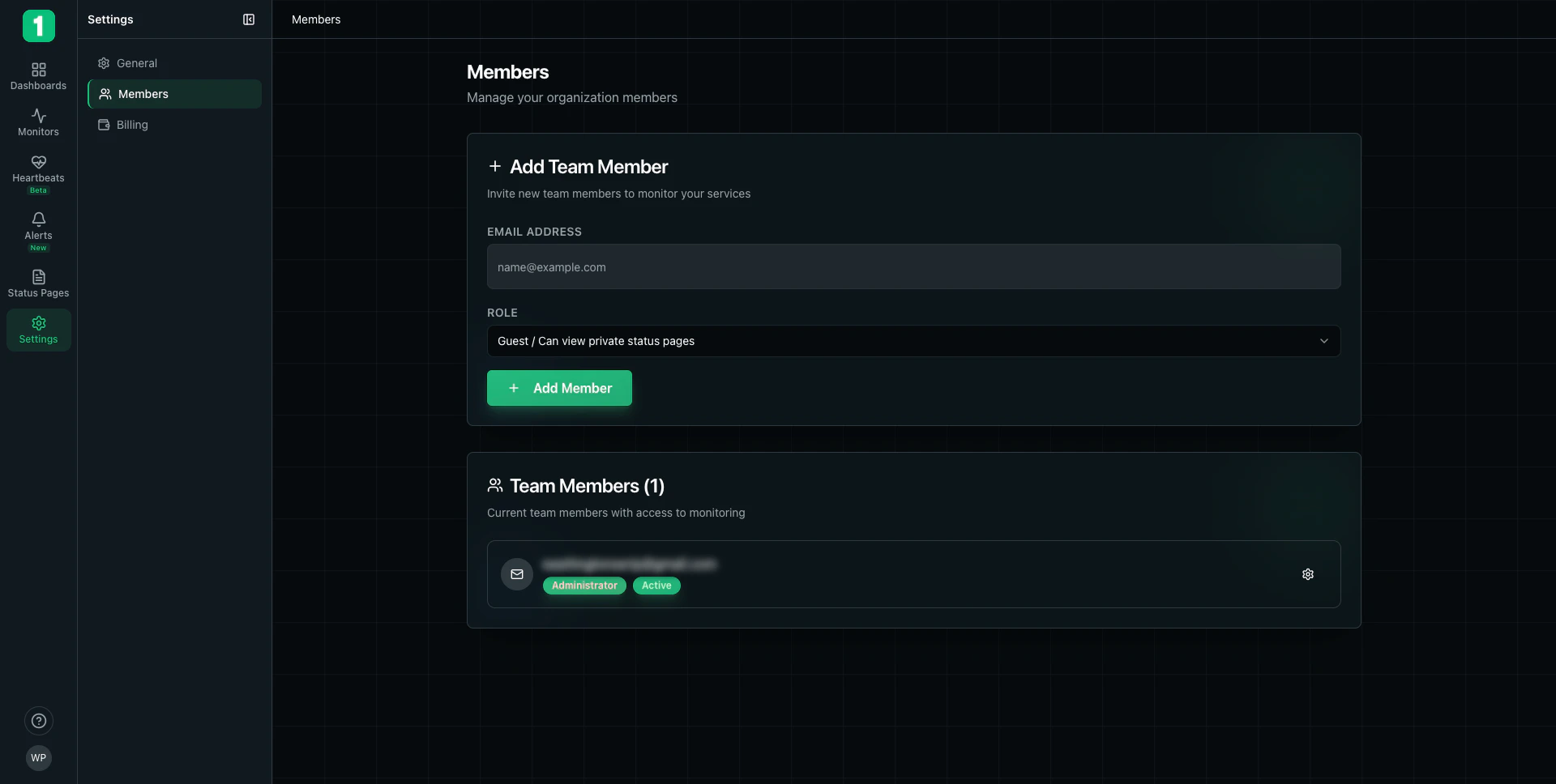 ## Inviting Team Members
### Add Team Member Form
1. Navigate to **Settings** → **Members**
2. Enter the member's email address
3. Select a role from the dropdown
4. Click **+ Add Member**
### Member Roles
**Guest** - Can view private status pages
* Limited access to read-only views
* Cannot modify monitors or settings
**(Other roles may include: Member, Admin, Owner depending on your plan)**
## Current Team Members
The **Team Members** section shows all active members with:
* **Email address**
* **Role badge** (e.g., "Administrator")
* **Status badge** (e.g., "Active")
* **Settings icon** - Click to manage the member
### Managing Members
For each team member, you can:
* Change their role
* Resend invitation (if pending)
* Remove from organization
## Best Practices
Grant minimum necessary permissions. Not everyone needs admin access.
Periodically review team members and remove those who no longer need access.
Clarify who is responsible for different monitors or status pages.
## Invitations
When you invite someone:
1. They receive an email invitation
2. They create an account or sign in
3. They accept the invitation
4. They gain access to your organization
## Next Steps
Configure organization preferences
Set up team notifications
## Inviting Team Members
### Add Team Member Form
1. Navigate to **Settings** → **Members**
2. Enter the member's email address
3. Select a role from the dropdown
4. Click **+ Add Member**
### Member Roles
**Guest** - Can view private status pages
* Limited access to read-only views
* Cannot modify monitors or settings
**(Other roles may include: Member, Admin, Owner depending on your plan)**
## Current Team Members
The **Team Members** section shows all active members with:
* **Email address**
* **Role badge** (e.g., "Administrator")
* **Status badge** (e.g., "Active")
* **Settings icon** - Click to manage the member
### Managing Members
For each team member, you can:
* Change their role
* Resend invitation (if pending)
* Remove from organization
## Best Practices
Grant minimum necessary permissions. Not everyone needs admin access.
Periodically review team members and remove those who no longer need access.
Clarify who is responsible for different monitors or status pages.
## Invitations
When you invite someone:
1. They receive an email invitation
2. They create an account or sign in
3. They accept the invitation
4. They gain access to your organization
## Next Steps
Configure organization preferences
Set up team notifications