> ## Documentation Index
> Fetch the complete documentation index at: https://getmonitor.io/docs/llms.txt
> Use this file to discover all available pages before exploring further.
# Notification Integrations
> Set up Email, SMS, Slack, Webhook, and other notification channels
## Available Integrations
GetMonitor lets you attach notification channels directly to a monitor. Each integration type has a slightly different setup form depending on the destination, credential, or endpoint it needs.
## Email
Email integrations send alerts to a single inbox for the selected monitor.
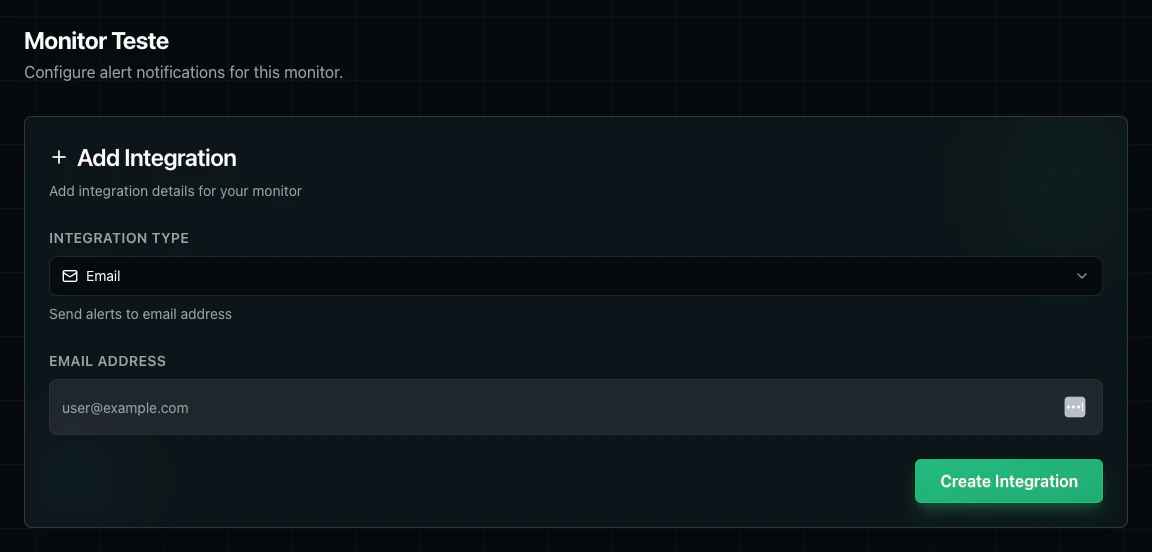 **What you need:** An `Email Address` that should receive monitor alerts.
**Setup:**
1. Open the monitor's Alerts screen.
2. Click `Add Integration`.
3. Select `Email` as the integration type.
4. Enter the destination email address.
5. Click `Create Integration`.
## SMS
SMS integrations send alert messages to a phone number in international format.
**What you need:** An `Email Address` that should receive monitor alerts.
**Setup:**
1. Open the monitor's Alerts screen.
2. Click `Add Integration`.
3. Select `Email` as the integration type.
4. Enter the destination email address.
5. Click `Create Integration`.
## SMS
SMS integrations send alert messages to a phone number in international format.
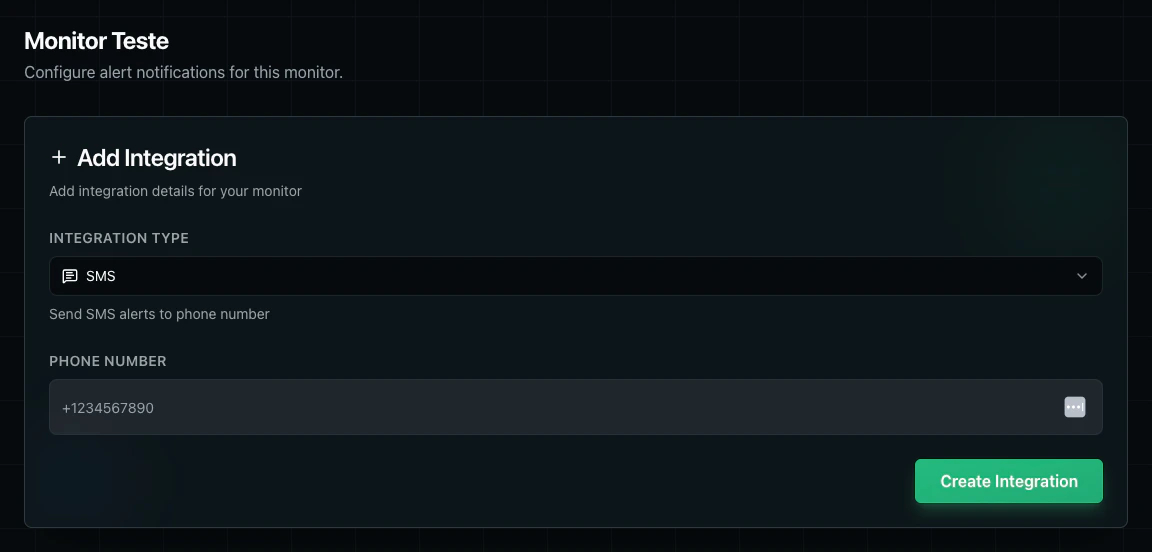 **What you need:** A `Phone Number` with country code, such as `+1234567890`.
**Setup:**
1. Open the monitor's Alerts screen.
2. Click `Add Integration`.
3. Select `SMS`.
4. Enter the destination phone number with country code.
5. Click `Create Integration`.
## Slack
Slack integrations send monitor alerts to a Slack webhook, with an optional channel override.
**What you need:** A `Phone Number` with country code, such as `+1234567890`.
**Setup:**
1. Open the monitor's Alerts screen.
2. Click `Add Integration`.
3. Select `SMS`.
4. Enter the destination phone number with country code.
5. Click `Create Integration`.
## Slack
Slack integrations send monitor alerts to a Slack webhook, with an optional channel override.
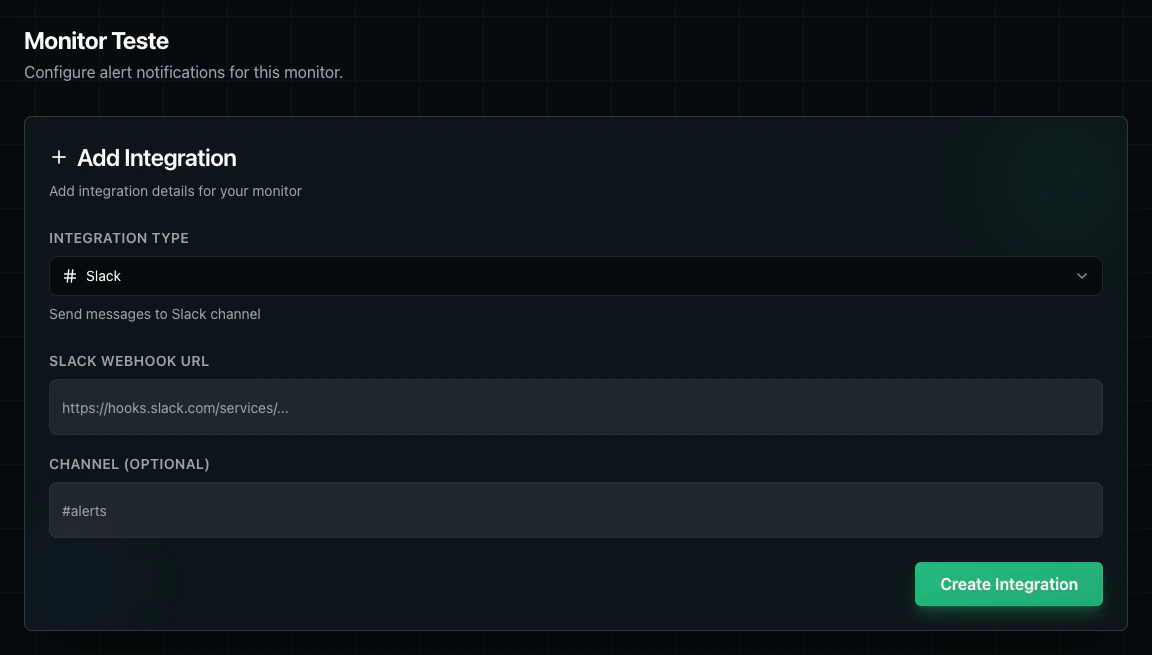 **What you need:**
* A `Slack Webhook URL`
* An optional `Channel` such as `#alerts`
**Setup:**
1. Create an incoming webhook in Slack.
2. Open the monitor's Alerts screen in GetMonitor.
3. Click `Add Integration`.
4. Select `Slack`.
5. Paste the Slack webhook URL.
6. Optionally enter a channel override.
7. Click `Create Integration`.
## Discord
Discord integrations deliver monitor alerts to a Discord channel through a webhook URL.
**What you need:**
* A `Slack Webhook URL`
* An optional `Channel` such as `#alerts`
**Setup:**
1. Create an incoming webhook in Slack.
2. Open the monitor's Alerts screen in GetMonitor.
3. Click `Add Integration`.
4. Select `Slack`.
5. Paste the Slack webhook URL.
6. Optionally enter a channel override.
7. Click `Create Integration`.
## Discord
Discord integrations deliver monitor alerts to a Discord channel through a webhook URL.
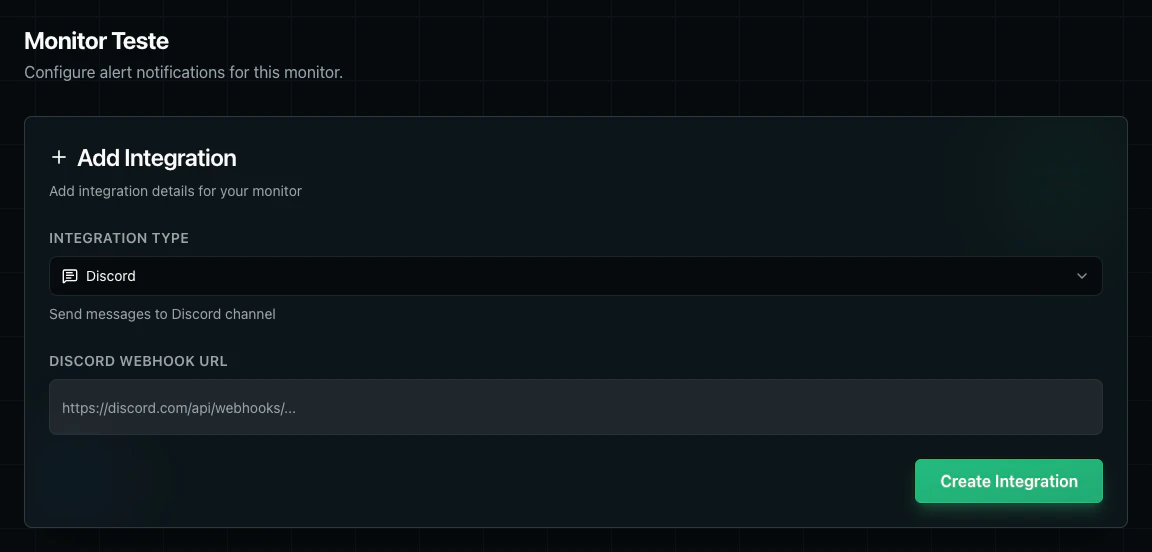 **What you need:** A `Discord Webhook URL`.
**Setup:**
1. Create a webhook in your Discord server.
2. Open the monitor's Alerts screen.
3. Click `Add Integration`.
4. Select `Discord`.
5. Paste the Discord webhook URL.
6. Click `Create Integration`.
## Telegram
Telegram integrations send monitor alerts through a Telegram bot to a specific chat.
**What you need:** A `Discord Webhook URL`.
**Setup:**
1. Create a webhook in your Discord server.
2. Open the monitor's Alerts screen.
3. Click `Add Integration`.
4. Select `Discord`.
5. Paste the Discord webhook URL.
6. Click `Create Integration`.
## Telegram
Telegram integrations send monitor alerts through a Telegram bot to a specific chat.
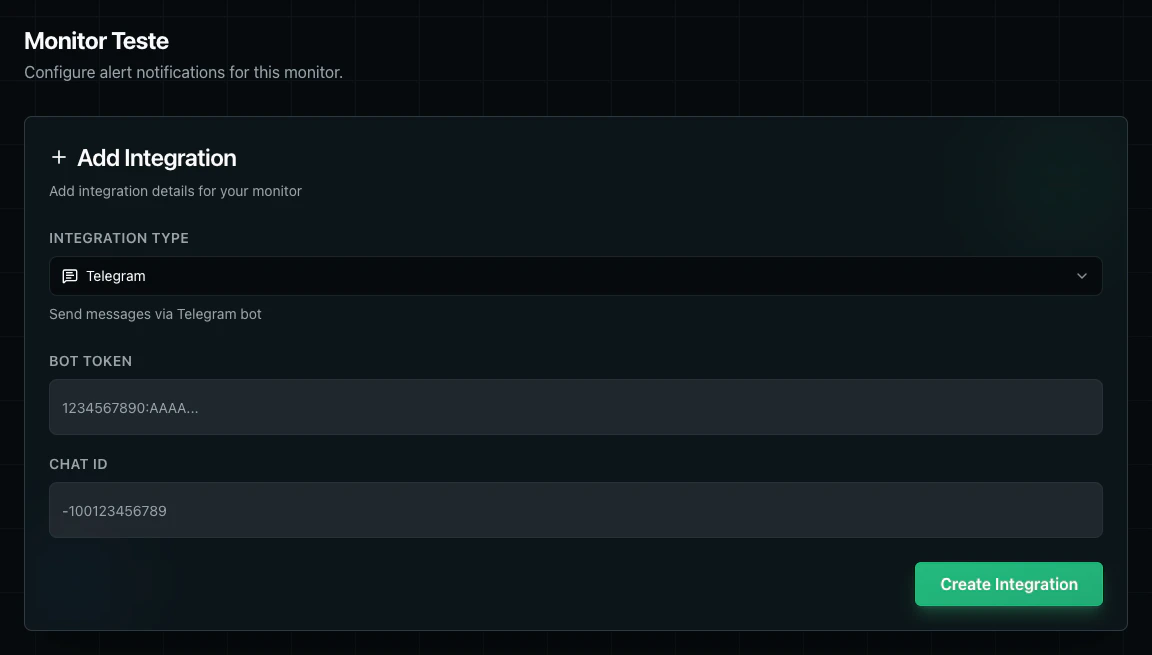 **What you need:**
* A Telegram `Bot Token`
* A destination `Chat ID`
**Setup:**
1. Create or choose a Telegram bot and copy its bot token.
2. Identify the target chat ID for the user, group, or channel that should receive alerts.
3. Open the monitor's Alerts screen.
4. Click `Add Integration`.
5. Select `Telegram`.
6. Enter the bot token and chat ID.
7. Click `Create Integration`.
## Webhook Integration
Webhook integrations send HTTP requests to your own endpoint when the monitor triggers an alert notification.
**What you need:**
* A Telegram `Bot Token`
* A destination `Chat ID`
**Setup:**
1. Create or choose a Telegram bot and copy its bot token.
2. Identify the target chat ID for the user, group, or channel that should receive alerts.
3. Open the monitor's Alerts screen.
4. Click `Add Integration`.
5. Select `Telegram`.
6. Enter the bot token and chat ID.
7. Click `Create Integration`.
## Webhook Integration
Webhook integrations send HTTP requests to your own endpoint when the monitor triggers an alert notification.
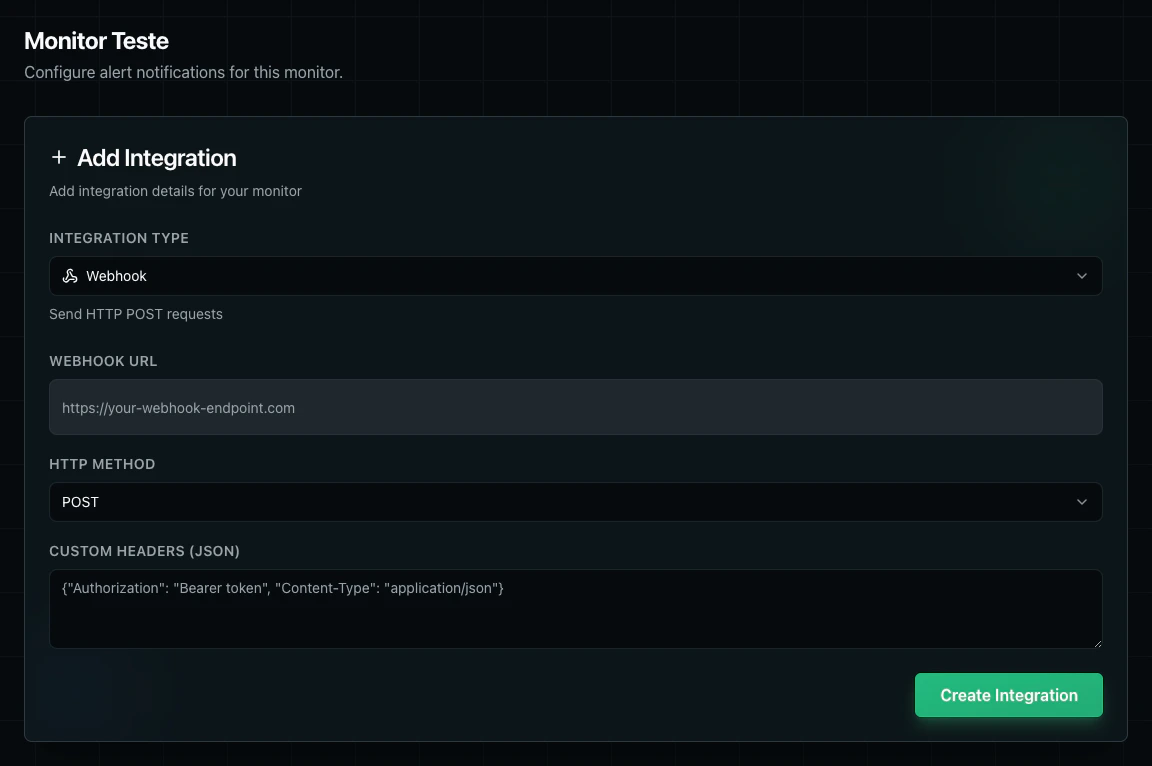 **What you need:**
* A `Webhook URL`
* An `HTTP Method`
* Optional `Custom Headers (JSON)`
**Setup:**
1. Open the monitor's Alerts screen.
2. Click `Add Integration`.
3. Select `Webhook`.
4. Enter the destination webhook URL.
5. Choose the HTTP method.
6. Optionally add custom headers as JSON.
7. Click `Create Integration`.
### Webhook Request Format
Webhook notifications are sent with `Content-Type: application/json`. The default `User-Agent` is `StatusPageOne-Monitor/1.0`. If you configure custom headers in the integration, they are added to the outgoing request.
### Webhook Payload
This is the exact JSON payload shape GetMonitor sends today:
```json theme={null}
{
"event_type": "monitor_alert",
"monitor": {
"id": "mon_123",
"name": "Production API",
"url": "https://api.example.com/health",
"status": "DOWN"
},
"check_result": {
"status": "DOWN",
"timestamp": "2026-04-02T14:30:00Z",
"region": "us-east-1",
"error_message": "request timeout",
"response_time_ms": 5000,
"status_code": 504
},
"context": {
"consecutive_failures": 3,
"previous_status": "UP"
}
}
```
### Payload Fields
* `event_type`: Always `monitor_alert` for webhook integrations.
* `monitor.id`: Internal monitor ID.
* `monitor.name`: Monitor name shown in the dashboard.
* `monitor.url`: Target URL configured on the monitor.
* `monitor.status`: Current check status, such as `UP` or `DOWN`.
* `check_result.status`: Current result for the alerting check.
* `check_result.timestamp`: RFC 3339 timestamp for when the check was performed.
* `check_result.region`: Region where the check ran.
* `check_result.error_message`: Present when the check fails with an error.
* `check_result.response_time_ms`: Present when a response time is available.
* `check_result.status_code`: Present when an HTTP status code is available.
* `context.consecutive_failures`: Number of consecutive failed checks at the time of the alert.
* `context.previous_status`: Previous known monitor status before this alert.
## Next Steps
Manage organization-wide alerts
Configure monitor-specific alerts
**What you need:**
* A `Webhook URL`
* An `HTTP Method`
* Optional `Custom Headers (JSON)`
**Setup:**
1. Open the monitor's Alerts screen.
2. Click `Add Integration`.
3. Select `Webhook`.
4. Enter the destination webhook URL.
5. Choose the HTTP method.
6. Optionally add custom headers as JSON.
7. Click `Create Integration`.
### Webhook Request Format
Webhook notifications are sent with `Content-Type: application/json`. The default `User-Agent` is `StatusPageOne-Monitor/1.0`. If you configure custom headers in the integration, they are added to the outgoing request.
### Webhook Payload
This is the exact JSON payload shape GetMonitor sends today:
```json theme={null}
{
"event_type": "monitor_alert",
"monitor": {
"id": "mon_123",
"name": "Production API",
"url": "https://api.example.com/health",
"status": "DOWN"
},
"check_result": {
"status": "DOWN",
"timestamp": "2026-04-02T14:30:00Z",
"region": "us-east-1",
"error_message": "request timeout",
"response_time_ms": 5000,
"status_code": 504
},
"context": {
"consecutive_failures": 3,
"previous_status": "UP"
}
}
```
### Payload Fields
* `event_type`: Always `monitor_alert` for webhook integrations.
* `monitor.id`: Internal monitor ID.
* `monitor.name`: Monitor name shown in the dashboard.
* `monitor.url`: Target URL configured on the monitor.
* `monitor.status`: Current check status, such as `UP` or `DOWN`.
* `check_result.status`: Current result for the alerting check.
* `check_result.timestamp`: RFC 3339 timestamp for when the check was performed.
* `check_result.region`: Region where the check ran.
* `check_result.error_message`: Present when the check fails with an error.
* `check_result.response_time_ms`: Present when a response time is available.
* `check_result.status_code`: Present when an HTTP status code is available.
* `context.consecutive_failures`: Number of consecutive failed checks at the time of the alert.
* `context.previous_status`: Previous known monitor status before this alert.
## Next Steps
Manage organization-wide alerts
Configure monitor-specific alerts