> ## Documentation Index
> Fetch the complete documentation index at: https://getmonitor.io/docs/llms.txt
> Use this file to discover all available pages before exploring further.
# Alert Rules & Integrations
> Configure organization-wide alerting and notification channels
## Overview
The Alerts section allows you to manage notification integrations that receive alerts when monitors go down or recover. These are organization-wide settings that can apply to multiple monitors.
 ## Accessing Alerts
Navigate to **Alerts** in the sidebar (or **Settings** → **Alerts** depending on your navigation structure).
## Alert Integrations
### Integration Types
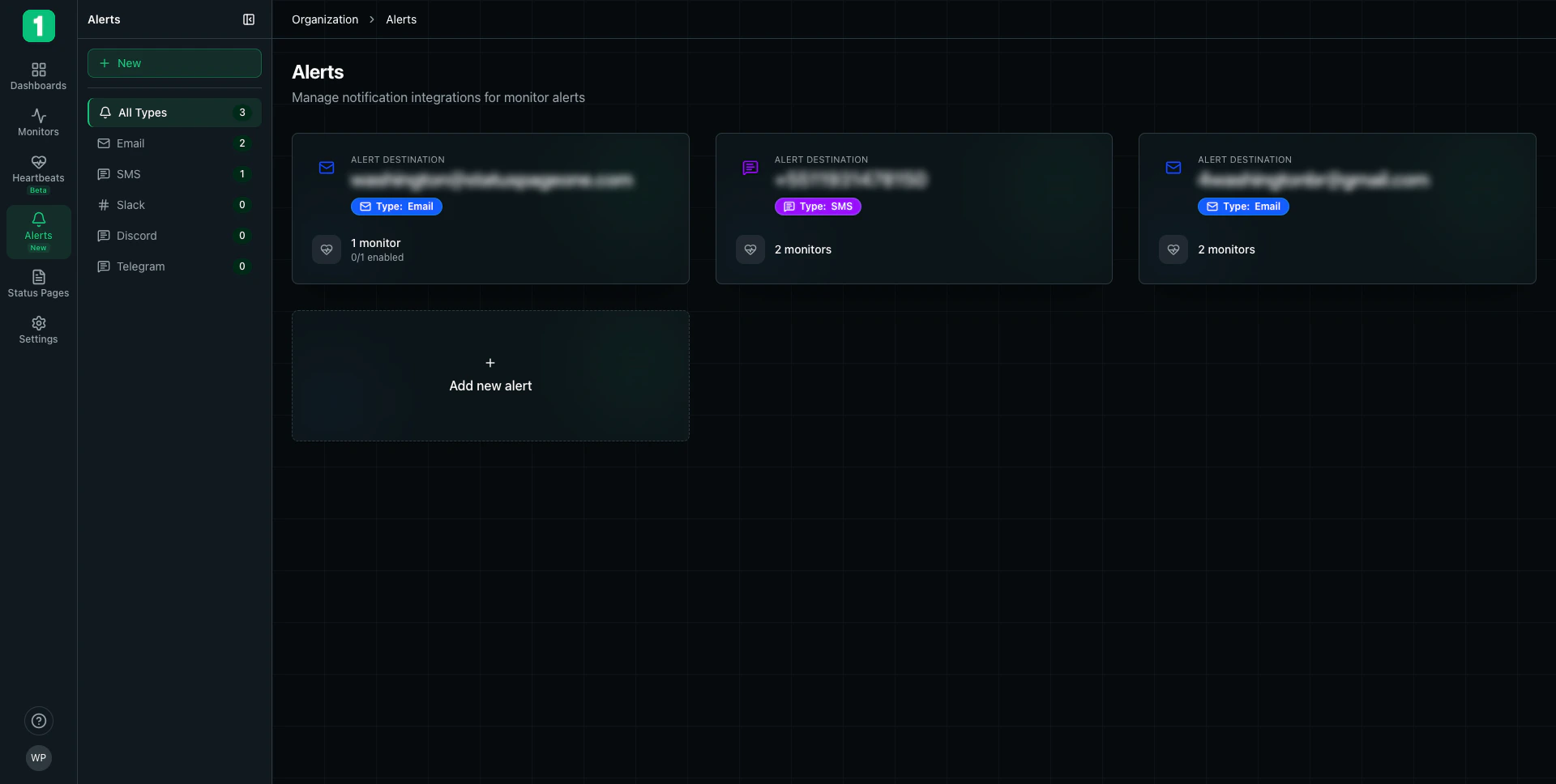
The sidebar shows available integration types and how many of each you've configured:
* **Email** (2) - Email notifications
* **SMS** (1) - Text message alerts
* **Slack** (0) - Slack channel notifications
* **Discord** (0) - Discord channel notifications
* **Telegram** (0) - Telegram chat notifications
Click **All Types** (3) to see all configured integrations.
### Integration Cards
Each integration is displayed as a card showing:
**Alert Destination:**
* Email address, phone number, or webhook URL
* Displayed prominently at the top
**Integration Type Badge:**
* Color-coded badge (Email, SMS, etc.)
* Shows the channel type at a glance
**Monitor Count:**
* How many monitors use this integration
* Example: "1 monitor", "2 monitors"
* Shows "0/1 enabled" if disabled
### Adding a New Integration
Click **+ Add new alert** to create a notification destination:
1. Select the integration type (Email, SMS, Slack, etc.)
2. Enter the destination details
3. Configure which monitors should use this integration
4. Save the integration
## Integration Management
### Viewing Integration Details
Click on an integration card to:
* See which monitors use it
* Enable or disable the integration
* Edit the destination
* Delete the integration
### Enabling/Disabling
Toggle integrations on or off without deleting them:
* **Enabled** - Will receive notifications
* **Disabled** - Paused, but configuration preserved
### Deleting Integrations
Remove integrations you no longer need:
* Click on the integration
* Select delete option
* Confirm deletion
Deleting an integration removes it from all monitors that use it. Consider disabling instead if you might need it again.
## Integration Types Detail
### Email Integrations
**Use Cases:**
* Team member notifications
* Ticketing system integration
* Email-based alerting
* Documentation and audit trail
**Configuration:**
* Email address
* Optional display name
### SMS Integrations
**Use Cases:**
* On-call engineer alerts
* Critical service notifications
* Backup notification method
* Immediate mobile alerts
**Configuration:**
* Phone number with country code
* Example: +1-555-0123
SMS notifications may incur additional costs. Use for critical monitors only.
### Slack Integrations
**Use Cases:**
* Team channel notifications
* Incident response coordination
* Real-time team awareness
**Configuration:**
* Webhook URL from Slack
* Channel name
### Discord Integrations
**Use Cases:**
* Community notifications
* Developer team alerts
* Gaming/tech communities
**Configuration:**
* Webhook URL from Discord
* Channel configuration
### Telegram Integrations
**Use Cases:**
* Mobile-first alerts
* International teams
* Personal notifications
**Configuration:**
* Bot token or chat ID
* Channel configuration
## Organization-Wide vs Monitor-Specific
### Organization-Wide Alerts (This Page)
* ✓ Centralized management
* ✓ Reusable across monitors
* ✓ Easier to maintain
* ✓ Can be applied to multiple monitors
### Monitor-Specific Alerts
* ✓ Custom per monitor
* ✓ Different recipients per service
* ✓ Configured on monitor's Alerts page
Use organization-wide integrations for team-wide notifications, and monitor-specific integrations for service-specific recipients.
## Best Practices
Set up integrations here once, then apply them to multiple monitors instead of recreating for each monitor.
If the integration supports names, use clear labels like "Engineering Team Slack" or "On-Call SMS".
Create different integrations for critical vs non-critical alerts to avoid alert fatigue.
After creating an integration, trigger a test to ensure it works correctly.
Periodically review and remove unused integrations to keep the list manageable.
Ensure team members know what to do when they receive alerts through each channel.
## Common Configurations
### Engineering Team Setup
```
Email: engineering@company.com (all monitors)
Slack: #engineering channel (all monitors)
SMS: +1-555-0100 (critical monitors only)
```
### Multi-Team Setup
```
Email: backend-team@company.com (API monitors)
Email: frontend-team@company.com (website monitors)
Slack: #backend-alerts (API monitors)
Slack: #frontend-alerts (website monitors)
SMS: +1-555-0200 (all critical monitors)
```
### On-Call Rotation
```
Email: oncall@company.com (all monitors)
SMS: +1-555-0300 (on-call engineer, rotates)
Slack: #incidents (all monitors)
```
## Next Steps
Detailed setup for each integration type
Manage notification delivery
Configure alerts for specific monitors
Handle incidents when alerts trigger
## Accessing Alerts
Navigate to **Alerts** in the sidebar (or **Settings** → **Alerts** depending on your navigation structure).
## Alert Integrations
### Integration Types
The sidebar shows available integration types and how many of each you've configured:
* **Email** (2) - Email notifications
* **SMS** (1) - Text message alerts
* **Slack** (0) - Slack channel notifications
* **Discord** (0) - Discord channel notifications
* **Telegram** (0) - Telegram chat notifications
Click **All Types** (3) to see all configured integrations.
### Integration Cards
Each integration is displayed as a card showing:
**Alert Destination:**
* Email address, phone number, or webhook URL
* Displayed prominently at the top
**Integration Type Badge:**
* Color-coded badge (Email, SMS, etc.)
* Shows the channel type at a glance
**Monitor Count:**
* How many monitors use this integration
* Example: "1 monitor", "2 monitors"
* Shows "0/1 enabled" if disabled
### Adding a New Integration
Click **+ Add new alert** to create a notification destination:
1. Select the integration type (Email, SMS, Slack, etc.)
2. Enter the destination details
3. Configure which monitors should use this integration
4. Save the integration
## Integration Management
### Viewing Integration Details
Click on an integration card to:
* See which monitors use it
* Enable or disable the integration
* Edit the destination
* Delete the integration
### Enabling/Disabling
Toggle integrations on or off without deleting them:
* **Enabled** - Will receive notifications
* **Disabled** - Paused, but configuration preserved
### Deleting Integrations
Remove integrations you no longer need:
* Click on the integration
* Select delete option
* Confirm deletion
Deleting an integration removes it from all monitors that use it. Consider disabling instead if you might need it again.
## Integration Types Detail
### Email Integrations
**Use Cases:**
* Team member notifications
* Ticketing system integration
* Email-based alerting
* Documentation and audit trail
**Configuration:**
* Email address
* Optional display name
### SMS Integrations
**Use Cases:**
* On-call engineer alerts
* Critical service notifications
* Backup notification method
* Immediate mobile alerts
**Configuration:**
* Phone number with country code
* Example: +1-555-0123
SMS notifications may incur additional costs. Use for critical monitors only.
### Slack Integrations
**Use Cases:**
* Team channel notifications
* Incident response coordination
* Real-time team awareness
**Configuration:**
* Webhook URL from Slack
* Channel name
### Discord Integrations
**Use Cases:**
* Community notifications
* Developer team alerts
* Gaming/tech communities
**Configuration:**
* Webhook URL from Discord
* Channel configuration
### Telegram Integrations
**Use Cases:**
* Mobile-first alerts
* International teams
* Personal notifications
**Configuration:**
* Bot token or chat ID
* Channel configuration
## Organization-Wide vs Monitor-Specific
### Organization-Wide Alerts (This Page)
* ✓ Centralized management
* ✓ Reusable across monitors
* ✓ Easier to maintain
* ✓ Can be applied to multiple monitors
### Monitor-Specific Alerts
* ✓ Custom per monitor
* ✓ Different recipients per service
* ✓ Configured on monitor's Alerts page
Use organization-wide integrations for team-wide notifications, and monitor-specific integrations for service-specific recipients.
## Best Practices
Set up integrations here once, then apply them to multiple monitors instead of recreating for each monitor.
If the integration supports names, use clear labels like "Engineering Team Slack" or "On-Call SMS".
Create different integrations for critical vs non-critical alerts to avoid alert fatigue.
After creating an integration, trigger a test to ensure it works correctly.
Periodically review and remove unused integrations to keep the list manageable.
Ensure team members know what to do when they receive alerts through each channel.
## Common Configurations
### Engineering Team Setup
```
Email: engineering@company.com (all monitors)
Slack: #engineering channel (all monitors)
SMS: +1-555-0100 (critical monitors only)
```
### Multi-Team Setup
```
Email: backend-team@company.com (API monitors)
Email: frontend-team@company.com (website monitors)
Slack: #backend-alerts (API monitors)
Slack: #frontend-alerts (website monitors)
SMS: +1-555-0200 (all critical monitors)
```
### On-Call Rotation
```
Email: oncall@company.com (all monitors)
SMS: +1-555-0300 (on-call engineer, rotates)
Slack: #incidents (all monitors)
```
## Next Steps
Detailed setup for each integration type
Manage notification delivery
Configure alerts for specific monitors
Handle incidents when alerts trigger