> ## Documentation Index
> Fetch the complete documentation index at: https://getmonitor.io/docs/llms.txt
> Use this file to discover all available pages before exploring further.
# Monitor Alerts
> Configure notifications for individual monitors to get alerted when issues occur
## Overview
Monitor-specific alerts allow you to configure custom notifications for individual monitors. This is useful when different monitors require different notification channels or recipients.
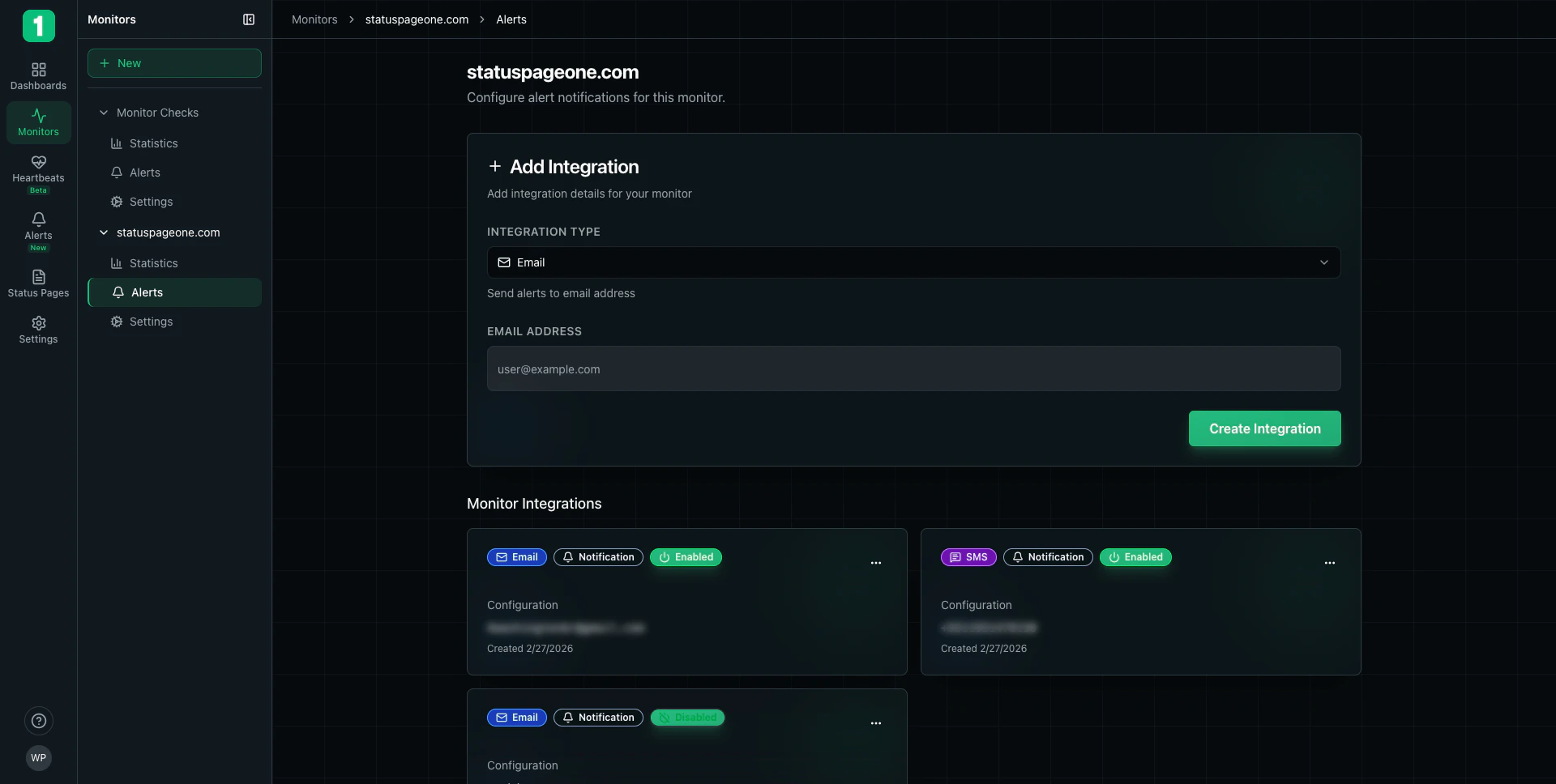 ## Accessing Monitor Alerts
To configure alerts for a specific monitor:
1. Navigate to **Monitors** in the sidebar
2. Click on the monitor name to expand it
3. Select **Alerts**
## Adding an Integration
Click **+ Add Integration** to attach a notification channel to this monitor.
### Available Integration Types
Send alert emails to specific addresses
Receive text message notifications
Post alerts to Slack channels
Send HTTP requests to custom endpoints
Post to Teams channels
Send to Discord channels
Send to Telegram chats
Additional integrations available
### Email Integration
To add an email alert:
1. Click **+ Add Integration**
2. Select **Email** from the integration type dropdown
3. Enter the email address
4. Click **Create Integration**
**Use Cases:**
* Send alerts to team members
* Notify on-call engineers
* Alert external stakeholders
* Route to ticketing systems via email
You can add multiple email integrations to notify different people or create redundancy.
### SMS Integration
To add SMS alerts:
1. Click **+ Add Integration**
2. Select **SMS** from the integration type dropdown
3. Enter the phone number (with country code)
4. Click **Create Integration**
**Use Cases:**
* Immediate notifications for critical services
* Reach on-call engineers anywhere
* Backup notification when email is unavailable
SMS notifications may incur additional costs depending on your plan. Use for critical monitors only.
## Managing Integrations
Each integration card displays:
* **Integration Type Badge** - Shows the channel type (Email, SMS, etc.)
* **Notification Status Badge** - Indicates if notifications are enabled
* **Enabled/Disabled Toggle** - Shows current state (Enabled/Disabled)
* **Configuration** - The destination (email address, phone number, etc.)
* **Created Date** - When the integration was added
* **Actions Menu (···)** - Additional options
### Integration States
**Enabled (Green badge):**
* ✓ Integration is active
* ✓ Will receive notifications when monitor goes down
* ✓ Will receive recovery notifications
**Disabled:**
* ✗ Integration is paused
* ✗ Will not receive notifications
* ✗ Keeps configuration for easy re-enabling
### Disabling an Integration
To temporarily stop notifications without deleting the integration:
1. Click the **···** menu on the integration card
2. Select **Disable**
The integration will change to disabled state but remains configured for future use.
### Enabling an Integration
To resume notifications:
1. Click the **···** menu on the integration card
2. Select **Enable**
### Deleting an Integration
To permanently remove an integration:
1. Click the **···** menu on the integration card
2. Select **Delete**
3. Confirm the deletion
Deleting an integration removes it permanently. You'll need to reconfigure it if you want to add it back later.
## Notification Behavior
### When Notifications Are Sent
Integrations receive notifications when:
**Monitor Goes Down:**
* Multiple consecutive checks fail (based on alert sensitivity)
* Monitor status changes from operational to down
**Monitor Recovers:**
* First successful check after being down
* Monitor status returns to operational
**Degraded Performance:**
* Monitor experiences partial failures
* Response times exceed thresholds
### Notification Content
Alert notifications typically include:
* **Monitor name** - Which monitor triggered the alert
* **Status** - Current state (Down, Degraded, or Recovered)
* **Timestamp** - When the issue was detected
* **Details** - Response code, error message, or timeout information
* **Link** - Direct link to monitor statistics
## Monitor-Specific vs. Organization Alerts
### Monitor-Specific Alerts (This Page)
* ✓ Apply to individual monitors
* ✓ Custom notifications per service
* ✓ Specific recipients for each monitor
* ✓ Added on the monitor's Alerts page
### Organization-Wide Alert Rules
* ✓ Apply to all monitors (or filtered groups)
* ✓ Centralized notification management
* ✓ Consistent alerting across services
* ✓ Configured in organization Settings
Set up organization-wide alert rules that apply to multiple monitors
## Best Practices
Begin with email notifications as they're reliable and don't incur additional costs. Add SMS for critical monitors only.
Configure alerts to reach the team responsible for each service. Don't send all alerts to everyone.
For critical monitors, add redundant notifications (e.g., both email and SMS) to ensure alerts are received.
After adding integrations, verify they work by checking the next scheduled downtime or using test features.
If you temporarily don't need notifications, disable integrations rather than deleting them to preserve configuration.
Ensure team members know what to do when they receive alerts. Include runbooks and escalation procedures.
## Common Configurations
### Critical Production Service
```
Monitor: Production API
Integrations:
- Email: oncall@company.com
- Email: engineering@company.com
- SMS: +1-555-0123 (On-call engineer)
- Slack: #incidents channel
```
### Internal Tool
```
Monitor: Internal Dashboard
Integrations:
- Email: devops@company.com
- Slack: #devops channel
```
### Public Website
```
Monitor: Company Website
Integrations:
- Email: support@company.com
- SMS: +1-555-0456 (Engineering lead)
- Webhook: https://ticketing.company.com/webhook
- Slack: #website-alerts
```
## Troubleshooting
**Check:**
* Integration is Enabled (green badge)
* Email address or phone number is correct
* Email isn't in spam folder
* SMS number includes correct country code
**Solutions:**
* Increase alert sensitivity in monitor settings (more retries before alerting)
* Disable non-critical integrations
* Use organization-wide alert rules with filtering instead
**Note:** Notifications are sent immediately when issues are detected. Delays usually indicate:
* Email server processing time
* SMS carrier delivery time
* Network congestion
## Integration Types Reference
| Type | Immediate | Persistent | Best For |
| -------- | --------- | ---------- | ------------------------------------------- |
| Email | ✓ | ✓ | Detailed information, ticketing integration |
| SMS | ✓✓✓ | ✗ | Critical alerts, on-call notifications |
| Slack | ✓✓ | ✓ | Team collaboration, incident response |
| Webhook | ✓✓ | ✗ | Custom integrations, automation |
| Teams | ✓✓ | ✓ | Microsoft-centric teams |
| Discord | ✓✓ | ✓ | Gaming/tech communities |
| Telegram | ✓✓ | ✓ | Mobile-first teams |
**Legend:**
* ✓✓✓ = Best choice for this use case
* ✓✓ = Good choice
* ✓ = Suitable
* ✗ = Not ideal
## Next Steps
Analyze monitor performance and uptime
Configure organization-wide alerting
Set up integrations for all monitors
Adjust monitor configuration
## Accessing Monitor Alerts
To configure alerts for a specific monitor:
1. Navigate to **Monitors** in the sidebar
2. Click on the monitor name to expand it
3. Select **Alerts**
## Adding an Integration
Click **+ Add Integration** to attach a notification channel to this monitor.
### Available Integration Types
Send alert emails to specific addresses
Receive text message notifications
Post alerts to Slack channels
Send HTTP requests to custom endpoints
Post to Teams channels
Send to Discord channels
Send to Telegram chats
Additional integrations available
### Email Integration
To add an email alert:
1. Click **+ Add Integration**
2. Select **Email** from the integration type dropdown
3. Enter the email address
4. Click **Create Integration**
**Use Cases:**
* Send alerts to team members
* Notify on-call engineers
* Alert external stakeholders
* Route to ticketing systems via email
You can add multiple email integrations to notify different people or create redundancy.
### SMS Integration
To add SMS alerts:
1. Click **+ Add Integration**
2. Select **SMS** from the integration type dropdown
3. Enter the phone number (with country code)
4. Click **Create Integration**
**Use Cases:**
* Immediate notifications for critical services
* Reach on-call engineers anywhere
* Backup notification when email is unavailable
SMS notifications may incur additional costs depending on your plan. Use for critical monitors only.
## Managing Integrations
Each integration card displays:
* **Integration Type Badge** - Shows the channel type (Email, SMS, etc.)
* **Notification Status Badge** - Indicates if notifications are enabled
* **Enabled/Disabled Toggle** - Shows current state (Enabled/Disabled)
* **Configuration** - The destination (email address, phone number, etc.)
* **Created Date** - When the integration was added
* **Actions Menu (···)** - Additional options
### Integration States
**Enabled (Green badge):**
* ✓ Integration is active
* ✓ Will receive notifications when monitor goes down
* ✓ Will receive recovery notifications
**Disabled:**
* ✗ Integration is paused
* ✗ Will not receive notifications
* ✗ Keeps configuration for easy re-enabling
### Disabling an Integration
To temporarily stop notifications without deleting the integration:
1. Click the **···** menu on the integration card
2. Select **Disable**
The integration will change to disabled state but remains configured for future use.
### Enabling an Integration
To resume notifications:
1. Click the **···** menu on the integration card
2. Select **Enable**
### Deleting an Integration
To permanently remove an integration:
1. Click the **···** menu on the integration card
2. Select **Delete**
3. Confirm the deletion
Deleting an integration removes it permanently. You'll need to reconfigure it if you want to add it back later.
## Notification Behavior
### When Notifications Are Sent
Integrations receive notifications when:
**Monitor Goes Down:**
* Multiple consecutive checks fail (based on alert sensitivity)
* Monitor status changes from operational to down
**Monitor Recovers:**
* First successful check after being down
* Monitor status returns to operational
**Degraded Performance:**
* Monitor experiences partial failures
* Response times exceed thresholds
### Notification Content
Alert notifications typically include:
* **Monitor name** - Which monitor triggered the alert
* **Status** - Current state (Down, Degraded, or Recovered)
* **Timestamp** - When the issue was detected
* **Details** - Response code, error message, or timeout information
* **Link** - Direct link to monitor statistics
## Monitor-Specific vs. Organization Alerts
### Monitor-Specific Alerts (This Page)
* ✓ Apply to individual monitors
* ✓ Custom notifications per service
* ✓ Specific recipients for each monitor
* ✓ Added on the monitor's Alerts page
### Organization-Wide Alert Rules
* ✓ Apply to all monitors (or filtered groups)
* ✓ Centralized notification management
* ✓ Consistent alerting across services
* ✓ Configured in organization Settings
Set up organization-wide alert rules that apply to multiple monitors
## Best Practices
Begin with email notifications as they're reliable and don't incur additional costs. Add SMS for critical monitors only.
Configure alerts to reach the team responsible for each service. Don't send all alerts to everyone.
For critical monitors, add redundant notifications (e.g., both email and SMS) to ensure alerts are received.
After adding integrations, verify they work by checking the next scheduled downtime or using test features.
If you temporarily don't need notifications, disable integrations rather than deleting them to preserve configuration.
Ensure team members know what to do when they receive alerts. Include runbooks and escalation procedures.
## Common Configurations
### Critical Production Service
```
Monitor: Production API
Integrations:
- Email: oncall@company.com
- Email: engineering@company.com
- SMS: +1-555-0123 (On-call engineer)
- Slack: #incidents channel
```
### Internal Tool
```
Monitor: Internal Dashboard
Integrations:
- Email: devops@company.com
- Slack: #devops channel
```
### Public Website
```
Monitor: Company Website
Integrations:
- Email: support@company.com
- SMS: +1-555-0456 (Engineering lead)
- Webhook: https://ticketing.company.com/webhook
- Slack: #website-alerts
```
## Troubleshooting
**Check:**
* Integration is Enabled (green badge)
* Email address or phone number is correct
* Email isn't in spam folder
* SMS number includes correct country code
**Solutions:**
* Increase alert sensitivity in monitor settings (more retries before alerting)
* Disable non-critical integrations
* Use organization-wide alert rules with filtering instead
**Note:** Notifications are sent immediately when issues are detected. Delays usually indicate:
* Email server processing time
* SMS carrier delivery time
* Network congestion
## Integration Types Reference
| Type | Immediate | Persistent | Best For |
| -------- | --------- | ---------- | ------------------------------------------- |
| Email | ✓ | ✓ | Detailed information, ticketing integration |
| SMS | ✓✓✓ | ✗ | Critical alerts, on-call notifications |
| Slack | ✓✓ | ✓ | Team collaboration, incident response |
| Webhook | ✓✓ | ✗ | Custom integrations, automation |
| Teams | ✓✓ | ✓ | Microsoft-centric teams |
| Discord | ✓✓ | ✓ | Gaming/tech communities |
| Telegram | ✓✓ | ✓ | Mobile-first teams |
**Legend:**
* ✓✓✓ = Best choice for this use case
* ✓✓ = Good choice
* ✓ = Suitable
* ✗ = Not ideal
## Next Steps
Analyze monitor performance and uptime
Configure organization-wide alerting
Set up integrations for all monitors
Adjust monitor configuration